
.NET 10 File-Based Apps - Best Way to Script in C#
Introduction
How many times have you needed a quick C# script - to call an API, transform some data, or test a library - and ended up spending 10 minutes setting up a project just to run 20 lines of code? That friction is real, and it pushes a lot of .NET developers toward Python or PowerShell for scripting tasks.
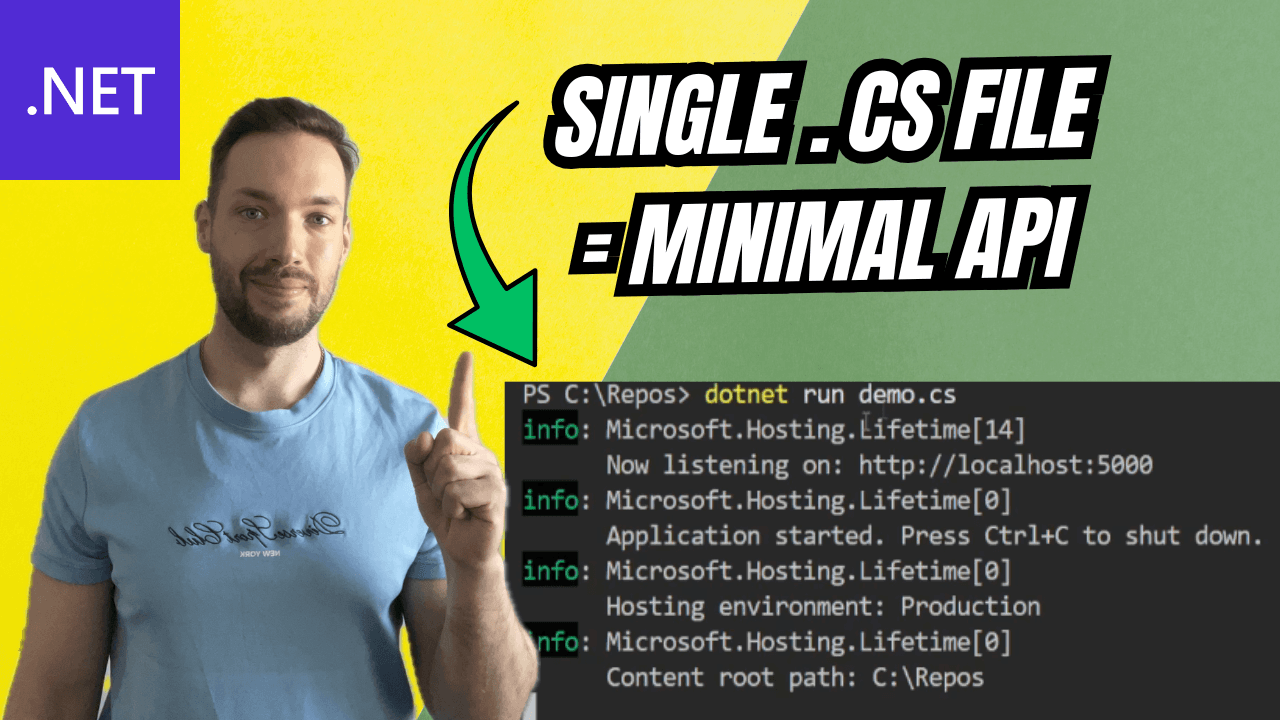
.NET 10 changes that. File-based applications let you write a single .cs file and run it directly with dotnet run. No .csproj, no solution, no boilerplate. Just code.
In this post I'll walk you through everything: NuGet packages, MSBuild properties, SDKs, spinning up a full Minimal API from a single file, publishing, and converting back to a full project when you need to.
🎬 Watch the full video here:
Prerequisites
You need .NET 10 SDK installed. To verify, run:
dotnet --list-sdks
Make sure a 10.x.x entry appears in the output. If not, grab it from the Microsoft website. This feature will not work on .NET 8 or .NET 9 - the SDK version matters.
⚡ Your First File-Based App
Create a file called demo.cs:
Console.WriteLine("Hello, World!");
Run it:
dotnet run demo.cs
That's it. No project file, no namespace, no static void Main. The runtime handles everything.
If you have a global.json pinning an older SDK in the directory, you'll get an error like couldn't find the project to run. Make sure the effective SDK is .NET 10.
📦 Using NuGet Packages
You reference NuGet packages with a special directive at the top of the file:
#:package Newtonsoft.Json@13.0.*

using Newtonsoft.Json;

var x = new { Name = "John", Age = 18 };
var serialized = JsonConvert.SerializeObject(x);
Console.WriteLine(serialized);
Key points:
- Use
#:package PackageName@versionat the top of the file - Wildcards like
13.0.*resolve to the latest matching version - The package is downloaded and cached automatically on first run
You'll notice a warning about reflection and trimming. That leads us to the next section.
MSBuild Properties
File-based apps have native AOT enabled by default. That's great for performance, but it breaks libraries that rely on reflection - like Newtonsoft.Json. You can override MSBuild properties directly in the file:
#:property PublishAot false
#:property LangVersion preview
#:property Nullable false
PublishAot false- disables AOT when publishing, required for reflection-based librariesLangVersion preview- gives you access to C# preview features; set it to a specific version like14to lock to thatNullable false- turns off nullable reference types (they are enabled by default in file-based apps)
These map directly to MSBuild properties you'd normally put in a .csproj. The #:property directive is how you reach them from a single file.
🌐 Using SDKs - Building a Minimal API
This is where it gets interesting. You can target the Microsoft.NET.Sdk.Web SDK from a single file and build a fully functional Minimal API:
#:property PublishAot false
#:sdk Microsoft.NET.Sdk.Web
#:package Microsoft.AspNetCore.OpenApi@*
#:package Scalar.AspNetCore@*

var builder = WebApplication.CreateBuilder(args);

builder.Services.AddOpenApi();
builder.Services.AddHttpClient();

var app = builder.Build();

app.MapOpenApi();
app.MapScalarApiReference();

app.MapGet("/weather/{city}", async (string city, IHttpClientFactory factory) =>
{
    var client = factory.CreateClient();
    var result = await client.GetStringAsync(
        $"https://wttr.in/{city}?format=j1");
    return Results.Content(result, "application/json");
});

app.Run();
Key points:
#:sdkswitches the underlying SDK - here to the Web SDK- You get full access to
WebApplication, DI, middleware, and routing - The Scalar UI is available at
/scalar/v1after running - This is 26 lines and produces a working HTTP API
Run it the same way:
dotnet run demo.cs
Publishing a File-Based App
To publish a self-contained executable from a single file:
#:property PublishAot false
#:property PublishSingleFile true
#:property EnableStaticWebAssetsManifest false
Then publish:
dotnet publish demo.cs
With these properties, the output in artifacts/demo/ contains just two files: the executable and the PDB. Without PublishSingleFile true, you'll also get web.config and in-process hosting files because of the Web SDK.
The EnableStaticWebAssetsManifest false property suppresses extra static asset files that aren't needed for API-only apps.
Converting to a Full Project
When the script grows and you need a proper project structure, use the built-in conversion command:
dotnet project convert demo.cs --output demo
This generates a demo.csproj with all the NuGet packages and properties you defined in the file. Your demo.cs stays in place - the --delete-source flag removes it if you want a clean cut.
One current limitation: only single-file conversion is supported. .NET 11 is expected to bring multi-file support, which will make this workflow viable for larger scripts that were split across helpers. Worth watching.
Comparison: File-Based vs Traditional Project
| Feature | File-Based App | Traditional Project |
|---|---|---|
| Setup time | Seconds | Minutes |
| NuGet packages | #:package directive | .csproj reference |
| MSBuild properties | #:property directive | .csproj element |
| SDK targeting | #:sdk directive | Sdk attribute in .csproj |
| AOT by default | Yes | No |
| Nullable by default | Yes | Depends on template |
| Multi-file support | .NET 11 (planned) | Yes |
| Best for | Scripts, prototypes, tools | Production services |
Key Takeaways
- File-based apps in .NET 10 let you run a single
.csfile withdotnet run demo.cs- no project required. - Use
#:package,#:sdk, and#:propertydirectives to access NuGet packages, alternate SDKs, and MSBuild properties from within the file. - AOT is enabled by default; set
#:property PublishAot falsewhen using reflection-based libraries likeNewtonsoft.Json. - You can build a fully working Minimal API with Scalar and OpenAPI from a single 26-line file using the Web SDK.
- When a script grows into a real project,
dotnet project convertgenerates a.csprojfrom the file automatically. - Multi-file conversion is coming in .NET 11, making this workflow even more practical for larger tooling scripts.
Connect with me:
Follow me on LinkedIn
Subscribe on YouTube