
Minimal API Validation in .NET 10 - Built-In Support with Data Annotations
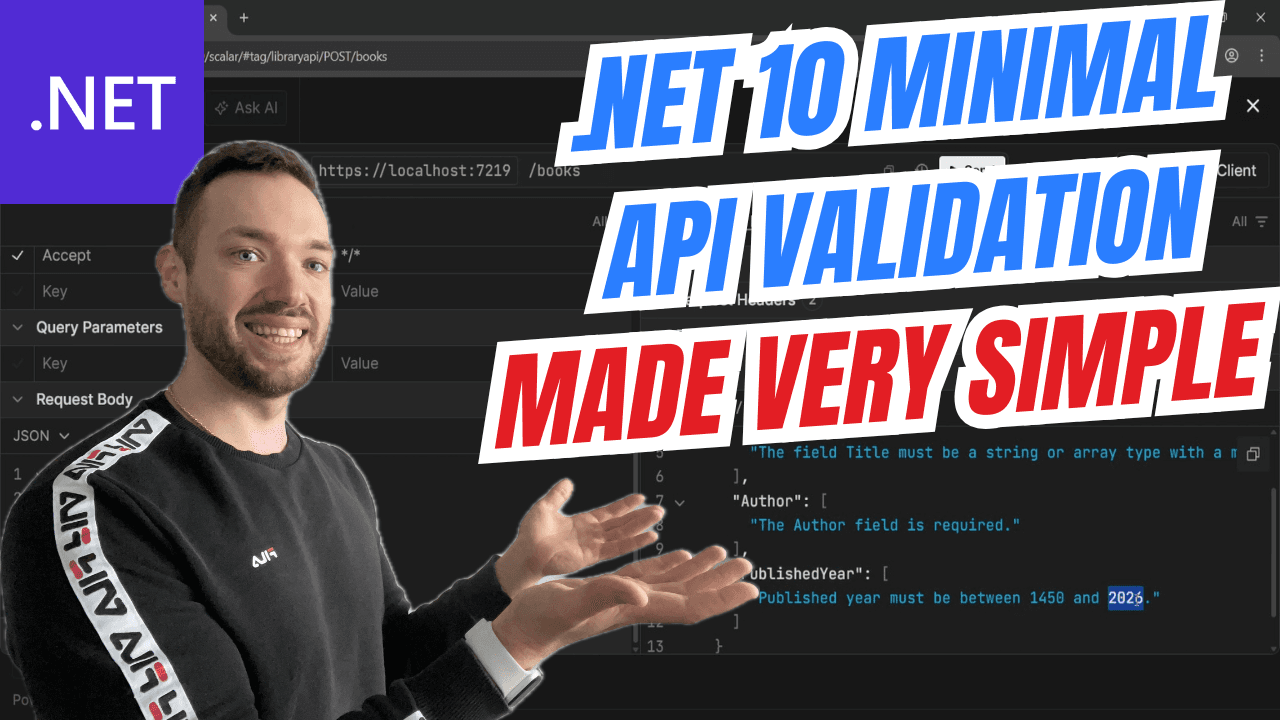
Introduction
If you've ever built a Minimal API in .NET, you probably know the pain - there was no built-in validation out of the box. You had to rely on third-party libraries like FluentValidation or write manual checks inside your endpoint handlers.
That changes with .NET 10. Microsoft has introduced native validation support for Minimal APIs using Data Annotations - the same [Required], [MaxLength], and custom validation attributes you already know from MVC controllers.
In this article, I'll walk you through exactly how it works using a practical Library API example.
The Problem Before .NET 10
In earlier versions of .NET, Minimal APIs had no automatic model validation. If you defined a POST endpoint like this:
app.MapPost("/books", (CreateBookRequest request) =>
{
    // No validation happens automatically!
    // You had to manually check or use FluentValidation
});
The framework would happily accept any payload - even an empty one - and let your handler deal with it. This meant:
- ❌ No automatic
400 Bad Requestresponses for invalid data - ❌ No support for
[Required],[MaxLength], etc. - ❌ You had to install and configure external validation libraries
What's New in .NET 10
.NET 10 adds a single line that changes everything:
builder.Services.AddValidation();
That's it. By calling AddValidation() on your service collection, the framework will automatically validate any request model decorated with Data Annotation attributes before your endpoint handler is executed.
If validation fails, the API returns a 400 Bad Request with detailed error messages - no manual intervention required.
Full Example - Building a Library API
Let's build a simple Library API that validates book creation requests. Here's the complete project structure:
1. Project Setup
First, make sure you're targeting .NET 10:
<Project Sdk="Microsoft.NET.Sdk.Web">

  <PropertyGroup>
    <TargetFramework>net10.0</TargetFramework>
    <Nullable>enable</Nullable>
    <ImplicitUsings>enable</ImplicitUsings>
  </PropertyGroup>

  <ItemGroup>
    <PackageReference Include="Microsoft.AspNetCore.OpenApi" Version="10.0.2" />
    <PackageReference Include="Scalar.AspNetCore" Version="2.12.30" />
  </ItemGroup>

</Project>
2. Define the Request Model with Validation
Here's where the magic happens. Define a CreateBookRequest record with Data Annotation attributes:
using System.ComponentModel.DataAnnotations;

namespace LibraryApi;

public record CreateBookRequest(
    [Required]
    [MinLength(2)]
    [MaxLength(200)]
    string Title,
    [Required]
    string Author,
    string? Isbn,
    [ValidPublishedYear]
    int? PublishedYear
);
Notice a few things:
Titleis required and must be between 2 and 200 characters.Authoris required.Isbnis optional (nullable).PublishedYearuses a custom validation attribute - we'll create that next.
3. Create a Custom Validation Attribute
For scenarios where built-in attributes aren't enough, you can create your own. Here's a custom [ValidPublishedYear] attribute that ensures the year is between 1450 (roughly when the printing press was invented) and the current year:
using System.ComponentModel.DataAnnotations;

namespace LibraryApi;

[AttributeUsage(AttributeTargets.Parameter)]
public sealed class ValidPublishedYearAttribute : ValidationAttribute
{
    private const int MinYear = 1450;

    protected override ValidationResult? IsValid(object? value,
        ValidationContext validationContext)
    {
        if (value is null)
            return ValidationResult.Success;

        if (value is not int year)
            return new ValidationResult("Published year must be a number.");

        var currentYear = DateTime.UtcNow.Year;

        if (year < MinYear || year > currentYear)
        {
            return new ValidationResult(
                $"Published year must be between {MinYear} and {currentYear}.");
        }

        return ValidationResult.Success;
    }
}
Key implementation details:
nullis allowed - the field is optional, sonullpasses validation.- The attribute validates the year is within a sensible range.
- It inherits from
ValidationAttributeand overridesIsValid, just like any custom validation attribute in MVC. - Note the
[AttributeUsage(AttributeTargets.Parameter)]- this is important because record constructor parameters are parameters, not properties.
4. Define the Response DTO
A simple record for the created book response:
namespace LibraryApi;

public record BookDto(
    Guid Id,
    string Title,
    string Author,
    string? Isbn,
    int? PublishedYear
);
5. Wire It All Up in Program.cs
Here's the complete Program.cs:
using LibraryApi;
using Scalar.AspNetCore;

var builder = WebApplication.CreateBuilder(args);

builder.Services.AddOpenApi();
builder.Services.AddValidation();

var app = builder.Build();

if (app.Environment.IsDevelopment())
{
    app.MapOpenApi();
    app.MapScalarApiReference();
}

app.UseHttpsRedirection();

app.MapPost("/books", (CreateBookRequest request) =>
{
    var createdBook = new BookDto(
        Guid.NewGuid(),
        request.Title,
        request.Author,
        request.Isbn,
        request.PublishedYear
    );

    return Results.Created($"/books/{createdBook.Id}", createdBook);
})
.WithName("CreateBook");

app.Run();
The only new thing compared to a "classic" Minimal API setup is builder.Services.AddValidation(). Everything else is standard.
How It Works Under the Hood
When you call AddValidation(), .NET 10 registers a validation filter in the Minimal API pipeline. Here's the flow:
- Request comes in → the framework deserializes the JSON body into your record.
- Validation filter runs → it inspects all Data Annotation attributes on the model.
- If valid → your endpoint handler executes normally.
- If invalid → the framework short-circuits and returns a
400 Bad Requestwith a Problem Details response containing all validation errors.
You never have to write if (!ModelState.IsValid) or manually call a validator.
Testing the Validation
✅ Valid Request
POST /books
{
    "title": "Clean Code",
    "author": "Robert C. Martin",
    "isbn": "978-0132350884",
    "publishedYear": 2008
}
Response: 201 Created
{
  "id": "3fa85f64-5717-4562-b3fc-2c963f66afa6",
  "title": "Clean Code",
  "author": "Robert C. Martin",
  "isbn": "978-0132350884",
  "publishedYear": 2008
}
❌ Invalid Request - Missing Required Fields
POST /books
{
    "isbn": "978-0132350884"
}
Response: 400 Bad Request with validation errors for title and author.
❌ Invalid Request - Title Too Short
POST /books
{
    "title": "A",
    "author": "John Doe"
}
Response: 400 Bad Request - title must be at least 2 characters.
❌ Invalid Request - Future Published Year
POST /books
{
    "title": "Future Book",
    "author": "Time Traveler",
    "publishedYear": 2999
}
Response: 400 Bad Request - published year must be between 1450 and the current year.
Built-in vs. Custom Validation Attributes
Here's a quick reference of what you can use:
| Attribute | Purpose | Example |
|---|---|---|
[Required] | Field must be provided | [Required] string Title |
[MinLength(n)] | Minimum string length | [MinLength(2)] string Title |
[MaxLength(n)] | Maximum string length | [MaxLength(200)] string Title |
[Range(min, max)] | Numeric range | [Range(1, 100)] int Quantity |
[EmailAddress] | Valid email format | [EmailAddress] string Email |
[RegularExpression] | Matches a regex pattern | [RegularExpression(@"\d+")] |
[StringLength(max)] | Max string length (with optional min) | [StringLength(100)] |
Custom (ValidationAttribute) | Any custom logic | [ValidPublishedYear] |
Key Takeaways
- 🎯 .NET 10 adds built-in validation for Minimal APIs - just call
builder.Services.AddValidation(). - 🏷️ Use standard Data Annotation attributes (
[Required],[MaxLength], etc.) on your request models. - 🛠️ Create custom validation attributes by extending
ValidationAttributefor complex business rules. - 🔄 Validation runs automatically before your endpoint handler - no manual checks needed.
- 📦 No third-party libraries required - it's all built into the framework.
- ⚡ The framework returns a
400 Bad Requestwith structured error details when validation fails.
This is a huge quality-of-life improvement for anyone building Minimal APIs in .NET. What used to require FluentValidation or manual if checks now works out of the box with a single line of configuration.