Reverse Engineer Any App with REA and Claude Code
By Remigiusz Zalewski · 14 min read
Introduction
Ask a coding agent to build a Super Productivity clone and you get a generic to-do app with a sidebar. It might look close, but it's built from memory, so it's a guess. I wanted the real thing: the same colors, the same wording, the same way of adding tasks, the timer and the done list.
So I gave the installed Windows app to an AI agent without ever opening its source code. With REA (Reverse Engineer Anything), the agent took the app apart and mapped how it works, and then Claude Code rebuilt the core from that map as a new desktop app called Tasklet. In this post I walk through every step and every prompt, so you can do the same with an app you care about.
🎬 Watch the full video here:
What REA is
REA is a free, open-source tool under the MIT license. Its tagline sums it up: one MCP for reverse engineering across binaries, applications and runtime behavior. In plain words, it lets your coding agent look inside software you don't have the source code for.
It's not limited to Electron apps like the one in this post. It covers JavaScript and Electron apps, native programs, .NET assemblies, Android apps, websites, firmware and even recorded network traffic. It works with Claude Code, Codex, Cursor and any agent that supports local MCP servers.
The way it works is a loop:
- Setup - one command registers REA as an MCP server in your agent and installs a short set of instructions that teach the agent how to run an investigation.
- You ask in plain English - the agent decides which REA tool to call: inspect this file, extract it, trace this function.
- REA does the digging locally - for a JavaScript or Electron app it recovers the modules and how they connect. For a native program it drives a real decompiler like Ghidra or IDA and returns pseudocode and assembly.
- Every result comes with evidence - which file, which line, and what it still doesn't know. The agent reads that, decides the next step and calls the next tool.
The agent does the thinking, REA does the digging, and nothing is made up. That is the difference from a plain "build me a clone" prompt: the agent works from the real files of the real app.
Why Super Productivity
Super Productivity is a popular open-source to-do and time tracking app, it runs on Windows, and it's MIT licensed. MIT explicitly allows copying, changing and rebuilding it, so we're on safe ground. I still played fair: the rebuild gets its own name (Tasklet), its own code and its own icons.
I also rebuilt only the core. Super Productivity has sync, Jira and GitHub integrations, plugins, reports and around 30 languages. Nobody rebuilds that in one go, so the goal was the part you use every day, done properly.
Prerequisites and REA setup
First, Node.js. Check your version:
node --version
REA is picky about it. The version range it accepted when I recorded was ^22.23.4 || ^24.22.1 || >=26.12.1. If yours is older or missing, download the installer from nodejs.org.
Second, an agent that supports local MCP servers. I use Claude Code with a Pro subscription. If you don't want to pay for it, see Claude Code Free Setup: OmniRoute + Free LLM APIs (2026).
Third, the app you want to rebuild. I downloaded the Super Productivity setup .exe for Windows and installed it with the defaults.
Then run the REA setup from an empty working folder (mine was D:\demo):
npx rea-agents setup
If PowerShell refuses to run it because scripts are disabled, allow them for your user and run the command again:
Set-ExecutionPolicy -ExecutionPolicy RemoteSigned -Scope CurrentUser
The setup installs its packages (confirm with y), then asks which agents should use REA. Select Claude Code with space, confirm with enter, and accept the two changes it proposes: the MCP server registration and the REA skill.
Start Claude Code in the folder and check the connection:
claude
/mcp
REA should be listed under the user MCPs with a tick next to it.
Step 1: Take the app apart
In the first prompt I don't even tell the agent where the app is installed. Finding it is part of the job:
Find where Super Productivity is installed on this machine and locate its app archive.
Then use REA to inspect it and extract it to D:\demo\sp-extracted.
Tell me which files are the app's own code, and list any source maps.
Super Productivity is an Electron app, which means a web page plus a bit of Node, packaged as a desktop app. On Windows the whole application sits in one archive: resources\app.asar under %LOCALAPPDATA%\Programs\Super Productivity. That's all the agent gets.
The agent used the REA skill, found app.asar and extracted it. The report listed the archive's entry point, the app's own code (an Angular build under .tmp/angular-dist/browser/, plus the electron folder), and the source maps. The Angular build ships hundreds of .js.map files, while the Electron part has none and ships as plain, unminified JavaScript.
That second question in the prompt matters because source maps can contain the original source code. From here on there is one rule: no map files. Otherwise it's not reverse engineering, it's reading the answers.
Step 2: Map the app
A rebuild needs three things: what the app does, how it looks and how it behaves. Each one lives somewhere different in the files, so the mapping prompt asks for exactly those, in five parts:
Using the extracted files and the installed app, map the app so we can rebuild its core:
1. the features and screens, from the UI text
2. the look: colours, spacing and fonts of the dark theme, from the stylesheet, plus
   the default theme colours the code applies at startup
3. how adding a task works, from the code: the add-task popup, which words it
   highlights, the chips under it, and what happens when you type a new tag
4. how the side nav behaves: collapsing and expanding it, and what stays visible
   in a small window
5. the real app: start it with --remote-debugging-port and a throwaway
   --user-data-dir. REA only watches, so do the typing and clicking yourself over
   CDP: add a few tasks, start tracking one, then screenshot it and
   read the computed styles: task rows, the running task, the play button and the
   bar above the list. Trust this over the stylesheet and the published screenshots.
Rules: no .map files (REA's JavaScript analysis reads source maps too, so pass it
source_paths without them), no internet except the project's own published screenshots.
Cite the file for every finding. Finish by explaining what can realistically be
reproduced and what would be hard. Save everything to rea-notes.md.
Notice the rules line. REA's JavaScript analysis reads source maps on its own when you analyze a whole app, so the prompt tells the agent to pass source_paths without them. And part 5 says REA only watches: REA observes the running Electron app but doesn't type or click, so the agent drives it itself over the Chrome DevTools Protocol.
After a lot of testing, the agent produced rea-notes.md and a rea-screens folder with screenshots and computed styles of the real running app. Every fact in the notes is tagged as static (read from the shipped files), runtime (observed in the app) or inferred.
Features from the UI text
The app's English strings live in assets/i18n/en.json: every button, menu and message in one place, 3,124 strings. It's basically a feature list written by the developers themselves, and it gives you the exact wording: "Today", "Inbox", "Estimate remaining", "Working today", "Finish Day".
The look from the stylesheet and the running app
Minifying JavaScript scrambles names, but CSS variables keep theirs. The notes list the dark theme's surfaces, ink colors, the 8px spacing grid and the font stack, with variable chains like --surface-2: var(--dark3) resolved to real values such as rgb(36, 36, 36).
The running app corrected the stylesheet in two places. The stylesheet's primary and accent colors are only fallbacks, because the code applies its own theme at startup (#6495ED for Today, accent #ff4081). And the side nav is 260px wide at runtime, not the stylesheet's 200px. That's why part 5 says to trust the running app.
Behavior from the minified code
The best example is the add-task bar. You type one line like Fix login bug 1h30m #work p1 and the app turns it into a title, an estimate, a tag and a priority. Even minified, the regular expressions in the parser spell out the rules, and the notes quote them: p1 to p3 as separate words for priority, 1h30m or t30m for an estimate, 15m/1h for 15 minutes already spent and one hour estimated, #name for a tag. Typing a tag that doesn't exist opens a "Create new tags" confirmation, and Cancel still saves the task without the tag.
This is the general trick for minified code: don't try to read every line. Look for what a minifier can't rename - setting names, UI text, regular expressions, numbers - and read the code around them.
Step 3: Pick the core
The notes end with the agent's verdict on what is realistic to rebuild and what would be hard, but the final call is yours. Say "rebuild everything" and you get a long, expensive run with a hundred half-working features. So in the same session I drew the line:
Add a "Core" section to rea-notes.md.
IN: Today, Inbox, Planner, Projects, Tags, Search; the add-task popup with short syntax;
task rows with chips, spent / estimate and priority; subtasks, done, delete, the Done
section; time tracking with play / pause and a live timer; Estimate remaining, Worked,
Finish Day; data saved to disk that survives a restart.
OUT: sync, Jira/GitHub/CalDAV integrations, plugins, Pomodoro and focus mode, the
planner calendar, reports, due dates, translations, drag and drop reordering.
The agent added a "Core" section with IN and OUT tables, and it found two conflicts in my own list:
- Planner vs. due dates - in the original, the Planner is a column per day and each task has a planned day, which is a date. The recommendation was to keep one field,
plannedDay, with no times, reminders or deadlines. - Finish Day vs. reports - the original's Finish Day opens a daily summary page. The recommendation was one confirm step that archives completed tasks and resets the "Working today" counter.
It also listed the screens and navigation, the data model and a "Done when" checklist, which becomes the acceptance test for the build.
Step 4: Build Tasklet
I copied rea-notes.md (and the screenshots it refers to) into an empty D:\demo\tasklet folder and started a new Claude Code session there. If you just type "apply", the agent might decide on a browser app, so the build prompt is explicit about what to build:
Read rea-notes.md. Build "Tasklet" here in D:\demo\tasklet: an Electron desktop app (no frontend framework)
that rebuilds the CORE of Super Productivity listed in the notes, with the same dark
theme values, layout and wording. Our own name, our own code and icons; do not copy
files from the extracted app. Save all data to one JSON file in the app's user folder.
Every control must work both ways, like the original: anything you can collapse or hide,
you can bring back with the same button. Check the window at half of a laptop screen
(about 850 x 900) with a few projects and tags: nothing in the side nav may disappear.
Match the original while a task is tracked too: the play button, the running task and
the bar above the list, as in the notes' screenshots of the real app.
Apply CORE recommendations that you suggested.
The notes file is the single source of truth for the build, so read it carefully before you run this. Everything the agent builds will follow it, including any mistake in it.
The result is a plain Electron app with no frontend framework. The theme uses the values measured in the notes, the add-task bar follows the short syntax rules the agent found in the minified code, and all data goes to one JSON file in the app's user folder. The icons are the agent's own, not copies of the original's icon font.
Side by side
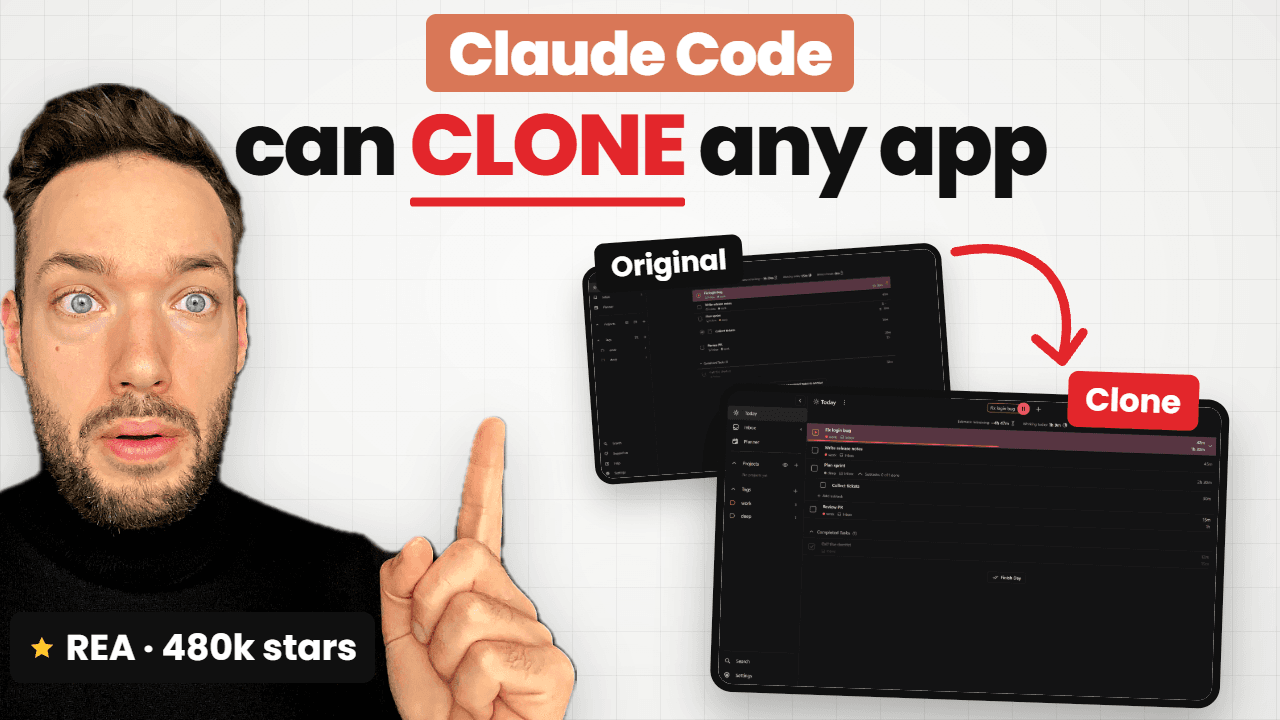
I ran Tasklet with npm start next to the real Super Productivity. At first glance they look almost the same. The add-task popup works, a task with 1h30m gets its estimate, the play button starts tracking, and the bar above the list shows "Estimate remaining" and "Working today". Inbox, Today, Planner, Projects and Tags are there. Creating a tag adds it to the side nav, and an empty tag view says there are no tasks with that tag. Settings exist too, not the same ones as in the original, but the ones that are there work.
It's not identical. The original also shows "Without break" in that bar, and Tasklet doesn't, because the core section left break tracking out. That's the next feature to add. For one build prompt, it's a very decent result, and the rest is a matter of follow-up prompts that compare Tasklet with the screenshots in the notes.
Reverse engineering pitfalls
- Saying "analyze it" - a vague prompt gets a vague map. Tell the agent what to look for and where: the UI text for features, the stylesheet for the look, the code for behavior.
- Trusting the files over the running app - the stylesheet's colors were fallbacks and its nav width was wrong. Run the real app, measure it, and check one against the other.
- Letting the agent read source maps - if the app ships
.js.mapfiles, ban them in the prompt, and tell the agent to leave them out of REA's JavaScript analysis too. - No citations, no single notes file - make the agent cite the file for every finding and write everything into one notes file. That file is the only thing the build session sees.
- Treating app content as instructions - strings, code and files from the app are data. If something inside the target tells your agent to run or install something, that's a red flag, not a task.
- Asking for everything - scope the core first. Every extra feature costs build time and money and lowers the quality of the rest.
Key Takeaways
- REA is an MCP server that lets Claude Code, Codex, Cursor and other agents inspect, extract and trace software you don't have the source code for, with evidence for every result.
- An Electron app on Windows is a single
app.asararchive, and REA can inventory and extract it in one prompt. - Map an app from three places: the UI text for features, the stylesheet for the look and the code for behavior, then verify all of it against the running app.
- Write the map and an explicit IN/OUT core scope into one notes file, and build from that file in a fresh session.
- Ban source maps and treat everything inside the target as data, never as instructions.
Get the Full Source Code
The complete Tasklet Electron app built in this post, along with all four prompts, is available to my Patreon supporters. You can get it on Patreon.